How easy can Kubernetes be? Try 10 minutes with Omni

November 11, 2025
6 min read
Kubernetes brings complexity. Without the right tools, running it on bare metal or at the edge adds even more.
Omni isn’t built to help you run Kubernetes in the cloud. Omni supports Kubernetes operations in traditionally difficult environments by providing multi-location cluster management. It replaces scripts and heavyweight platforms with lightweight automation, opinionated defaults, and API-driven workflows. Omni runs on Talos Linux, the immutable, declarative OS that ensures a consistent system state across your entire fleet. Together, Omni and Talos Linux eliminate drift, make updates safe (and pain-free), and let you configure hands-off edge devices.
With Omni, you get a complete OS setup, Kubernetes bootstrapping, and network configuration in minutes, not hours. Here are a few things to expect to do while using Omni:
- Provision Talos Linux clusters
- Apply secure configurations
- Manage updates and rollbacks
- Enforce identity and access control
- Align with GitOps practices
- Access via SaaS or self-managed CLI
Below is a quick look at what you can expect when getting set up.
Want to see the whole flow in real time? Watch the full walkthrough here.
Want to read the documentation? Find it here.
Now, here’s how you deploy Kubernetes on bare metal in less than 10 minutes with Omni.
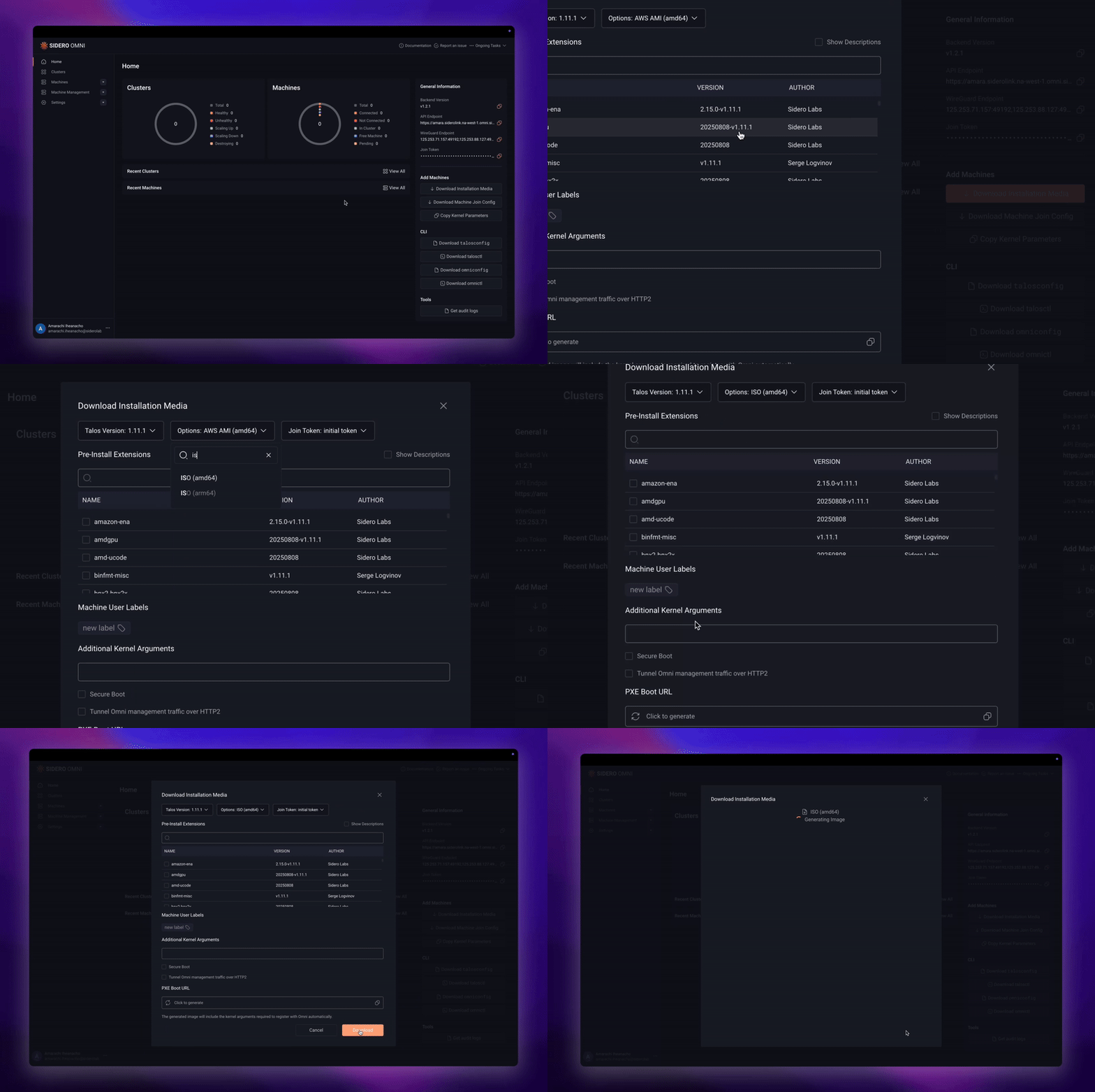
Step 1. Download and boot Omni
The first step is to download the installation media and select your deployment platform. Whether you’re deploying to AWS, GCP, VMware, bare metal, or even a Raspberry Pi, Omni automatically prepares the right Talos Linux image for your environment.
You can also select system extensions such as Secure Boot, GPU support, or CPU microcode drivers directly in the Omni interface. Simply check the extensions you need, and hit download. Omni will build and sign the image for you. Read about system extensions.
Once the image is ready, boot your machines from it. As soon as Talos Linux starts, it automatically establishes an outbound SideroLink connection back to Omni, even in private or edge networks. The machines will appear in your Omni dashboard, ready to join a cluster.
Highlights:
- Deploy anywhere: From public clouds to private data centers and edge devices, Omni lets you manage all your clusters from one interface.
- Skip manual setup: No more ISO builds, PXE boot scripts, or environment-specific configurations.
- Connect securely: SideroLink establishes automatic, encrypted connectivity with no inbound network setup required.
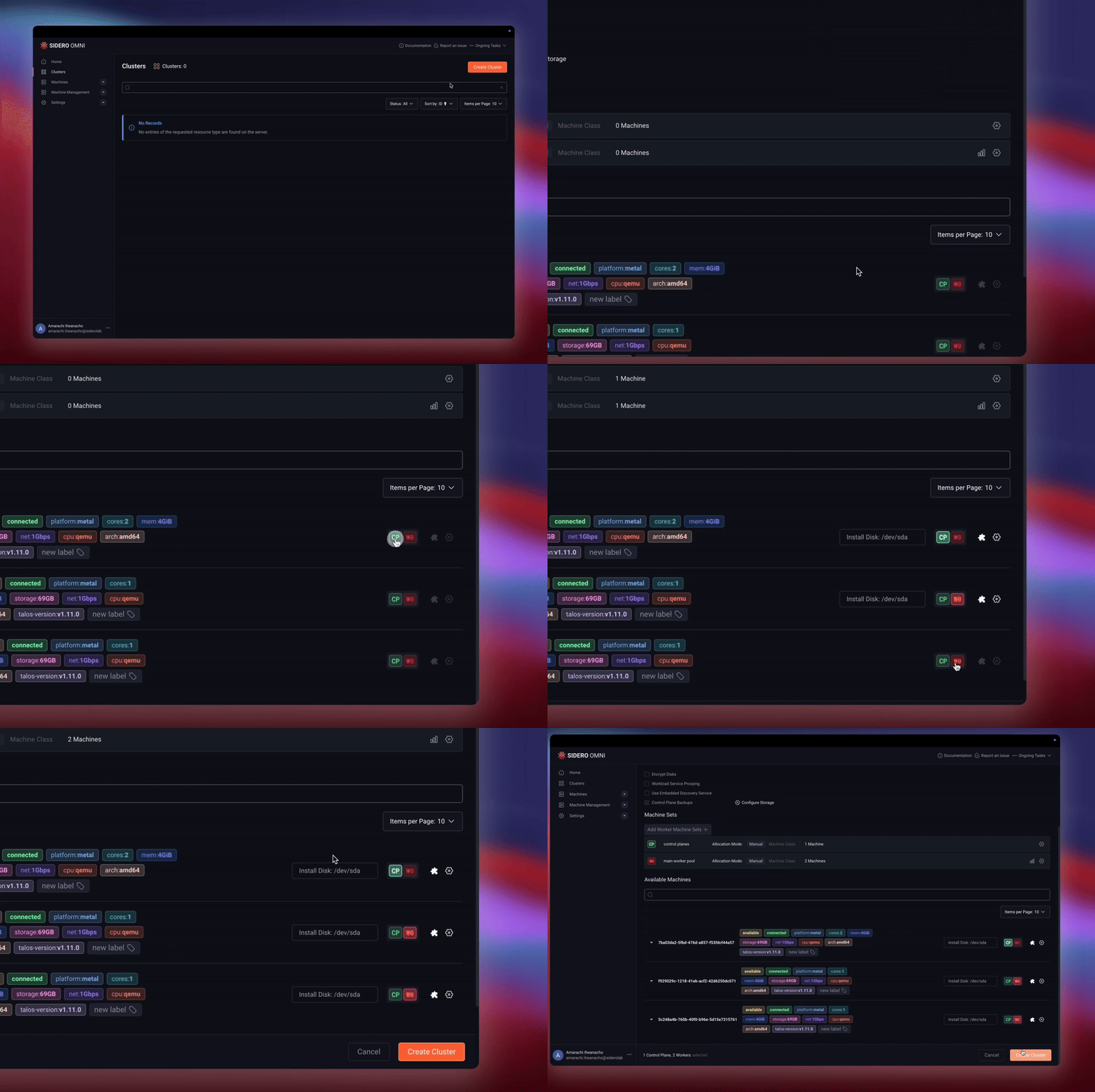
Step 2. Create your cluster
Once your machines appear in Omni, you can create your first cluster in just a few clicks.
From the Clusters page, select one or more machines. Choose their role: Control Plane or Worker Node. (For high availability, create three control-plane nodes.) Click Create Cluster.
Omni automatically handles the rest. It will deploy Talos Linux, create the Kubernetes control plane, and manage node configuration through an encrypted SideroLink tunnel. Within minutes, you’ll have a fully provisioned, production-ready cluster.
Highlights:
- Best practices built in: Omni validates configurations before applying them, warning you about settings that might affect stability or security.
- Zero manual coordination: Nodes are provisioned, joined, and updated automatically.
- End-to-end automation: Omni manages lifecycle operations through a single, secure control plane.
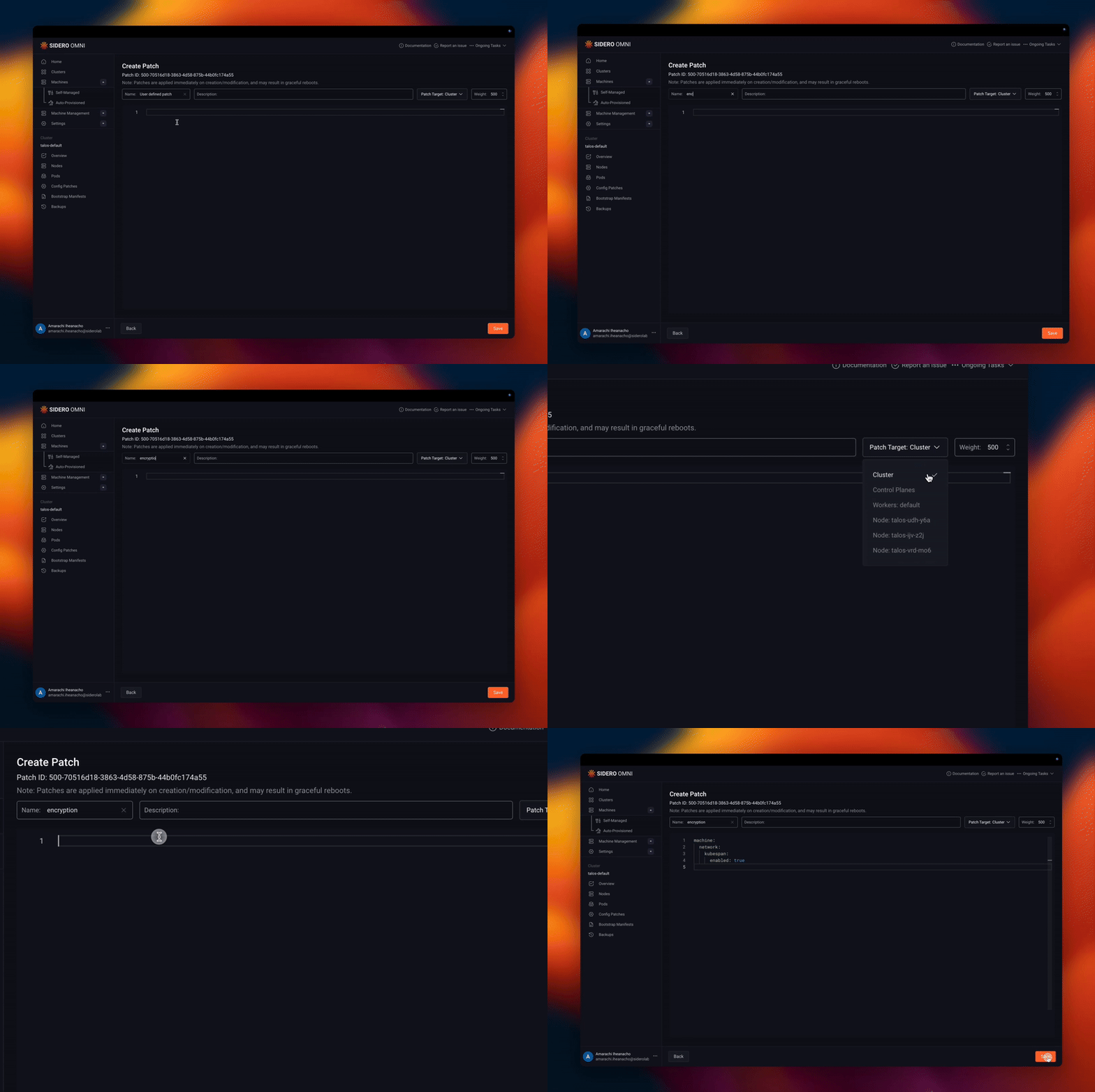
Step 3. Define and apply your desired cluster state
With Talos Linux, every part of the system is defined declaratively in YAML, including Kubernetes, users, networking, kernel args, and kubelet settings. You never SSH into a node or make live changes. Instead, you edit configuration files, apply them, and the OS continuously enforces that state.
Omni allows you to centrally perform and automate these changes. You can view and manage configurations directly from the Clusters page.
Go to Clusters, select your Machine, and open the Config tab to view the current configuration. To update, navigate to the Config Patches page. Select your target cluster or machine, write your YAML patch, and save it. Omni applies the update automatically via the API and enforces it fleet-wide.
If a node drifts from the defined state, Omni and Talos bring it back into alignment automatically.
Highlights:
- Fleet-wide consistency: Define once, apply everywhere.
- GitOps-native: Manage cluster state declaratively with full GitOps compatibility.
- Auditable and traceable: Changes are recorded by user for complete auditability.
- Simplified operations: Fewer manual steps and fewer tools needed to maintain configuration and state, and ensure the OS, Kubernetes, and settings are synced across machines. No need for a separate backup or config management systems.
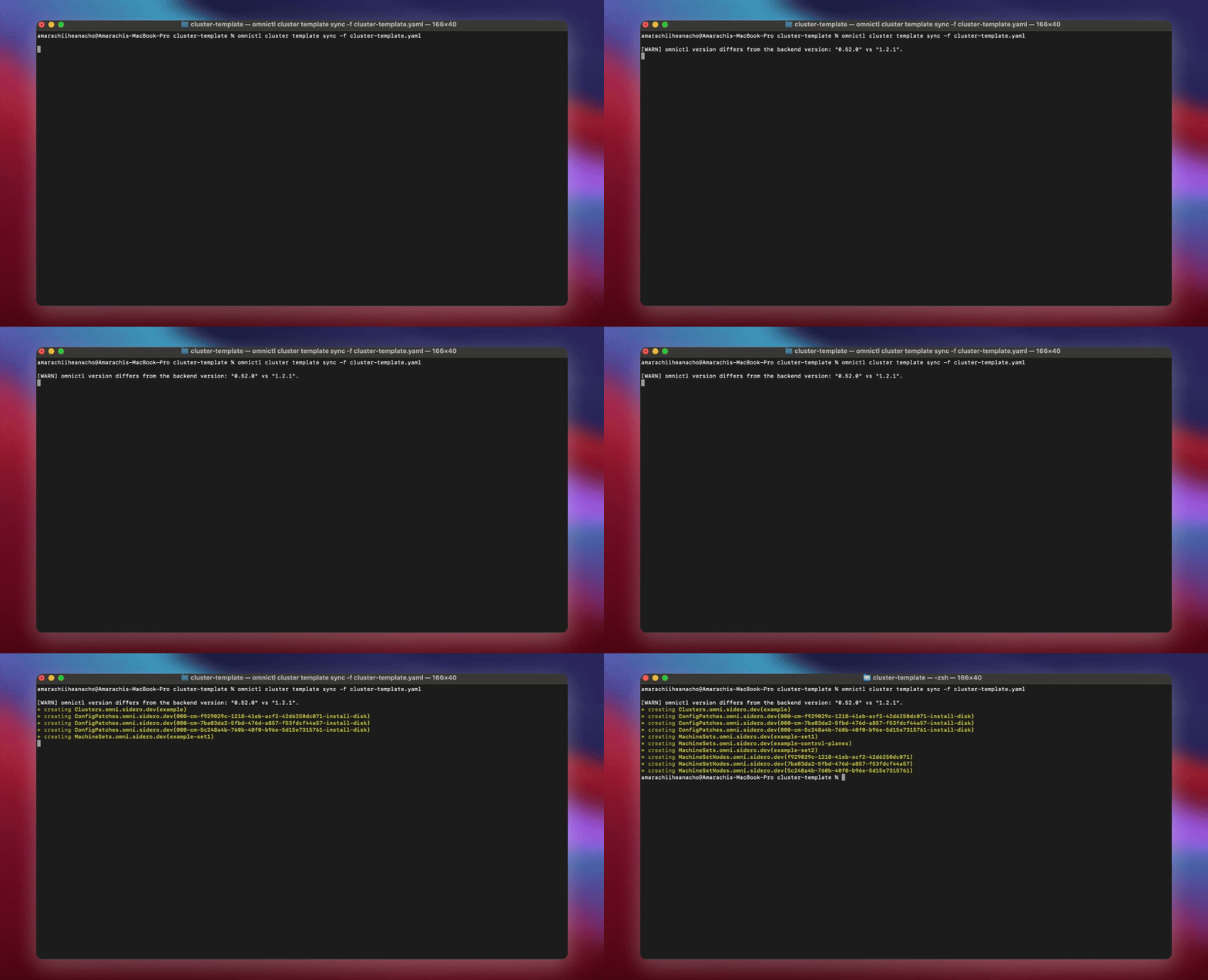
Alternatively, you can automate cluster creation with templates. Turn any cluster into a reusable template and define every aspect, down to node layout. When you create a cluster, you can export it to a template using omnictl. Then, hit “Create Cluster,” select your template, and you’ll create a fully provisioned cluster in your dashboard.
Read the cluster templates docs.
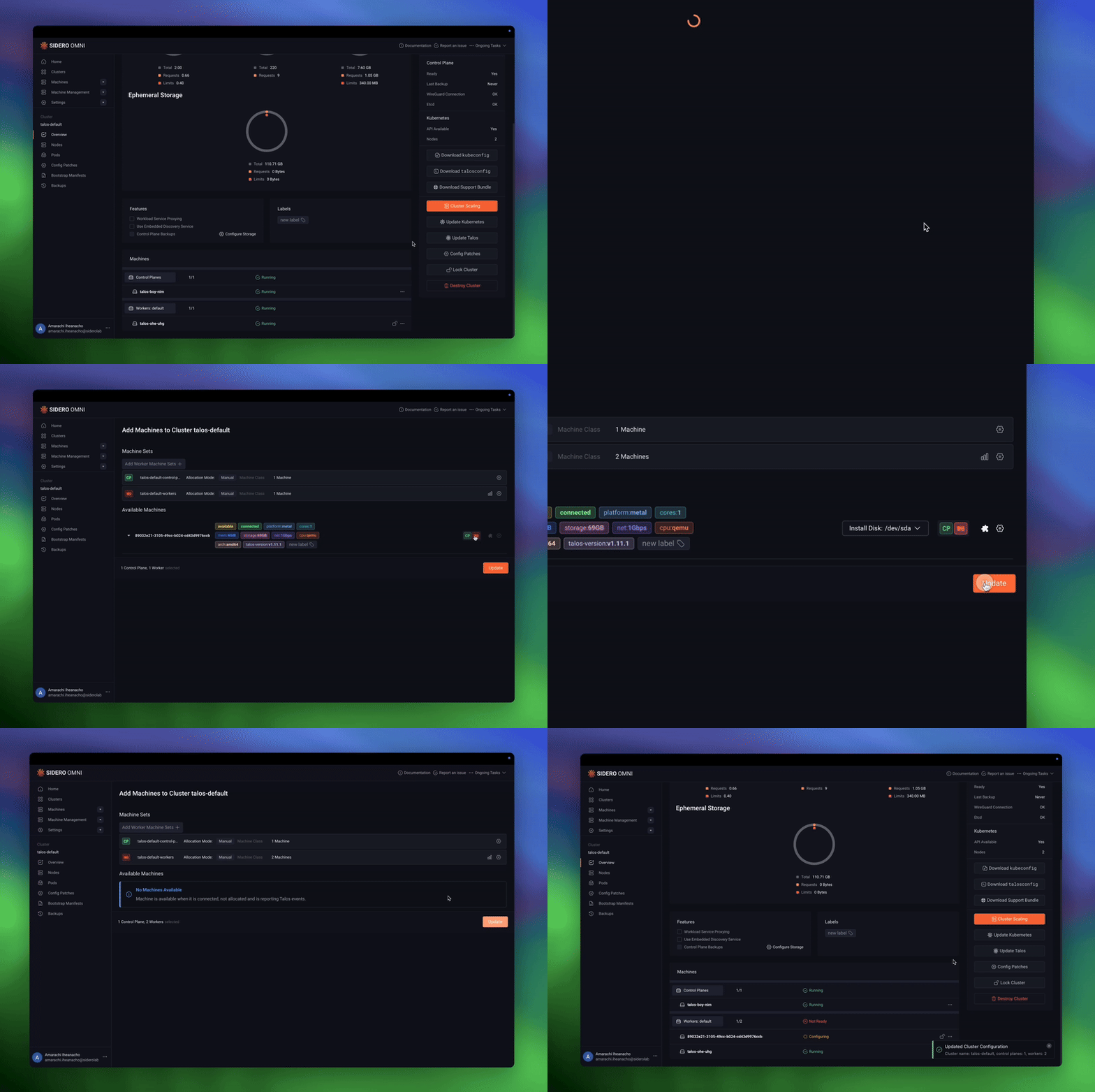 Optional: Expand a hybrid cluster
Omni makes it simple to scale clusters across environments. For example, let’s extend an existing cluster to span both on-prem hardware and AWS for cloud bursting.
Open the Cluster Scaling view from the Overview page to see all available machines. Select the nodes you’d like to add and set their state to “WO.” Within minutes, they’ll join the cluster, automatically inherit all configurations, and appear in your dashboard. No manual setup required.
Read the Cluster Reference Architecture.
Highlights:
- Faster scaling: Most Omni users say provisioning that once took hours now takes minutes.
- Unify hybrid infrastructure: Build and manage clusters that span locations from one platform.
Ready to try it yourself? Go ahead and create your own clusters now.
 Justin Garrison
 Steve Francis